
How to Connect Spotify to Alexa in 2026 (Full Guide)
Connecting Spotify to Alexa brings hands free music control right to your home. This guide explains how to connect Spotify to Alexa so you can play songs, skip tracks, and control volume using just your voice. This powerful combination turns your Echo device into a complete music system without touching your phone.
Setting up this connection takes only a few minutes but unlocks amazing features like multi room audio and smart home integration. Whether you use Spotify free or premium, linking it with Alexa makes your music experience smoother and more convenient than ever before.
What is Alexa
Alexa is Amazon’s smart voice assistant that lives inside Echo devices and other compatible products. Think of it as your personal helper that listens and responds to what you say. When you speak commands like play my playlist or turn on the lights, Alexa understands and takes action immediately.
Playing your favorite songs without touching your phone sounds amazing right. Alexa makes this possible by letting you control Spotify with just your voice. Whether you use Spotify Free or Premium, knowing how to connect Spotify to Alexa ensures seamless access to all your music across devices. Whether you want to play songs while cooking or create the perfect party atmosphere across multiple rooms. By the end of this article you will know every step needed to set up this connection plus solutions to common problems that might stop it from working.
How Spotify Works with Alexa
The connection between Spotify and Alexa happens through the Alexa app on your smartphone. This process explains exactly how to connect Spotify to Alexa and enjoy hands free music. Once you link your Spotify account, Alexa gains permission to access your playlists, liked songs, and listening history. This connection uses secure authentication so your account stays protected.
When you give Alexa a voice command like play some jazz music, the process happens in seconds. Your Echo device captures your voice and sends it to Amazon’s cloud servers. These servers understand what you want and communicate with Spotify to find the right music. The whole process takes less than two seconds and works smoothly with a stable internet connection.
Requirements to Connect Spotify to Alexa
Before linking Spotify with Alexa, make sure you have these essential items ready. Follow this checklist to successfully connect Spotify to Alexa on your devices.
- Active Spotify account either free or premium version
- Alexa enabled device like Echo Dot, Echo Show, or Echo speaker
- Alexa app installed on your smartphone from App Store or Google Play
- Stable internet connection on both devices
- Updated Spotify app to latest version
If you want to upgrade to Spotify Premium check these guides on Spotify plans: Individual plan, Duo plan, Family plan and Student Plan.
How to Connect Spotify to Alexa
Follow these steps to successfully connect Spotify to Alexa and start playing your favorite songs.
- Open the Alexa app on your smartphone. Download it from the App Store or Google Play Store if you do not have it yet.
- Tap the menu icon in the bottom right corner.
- Select Settings and scroll down to Music and Podcasts.
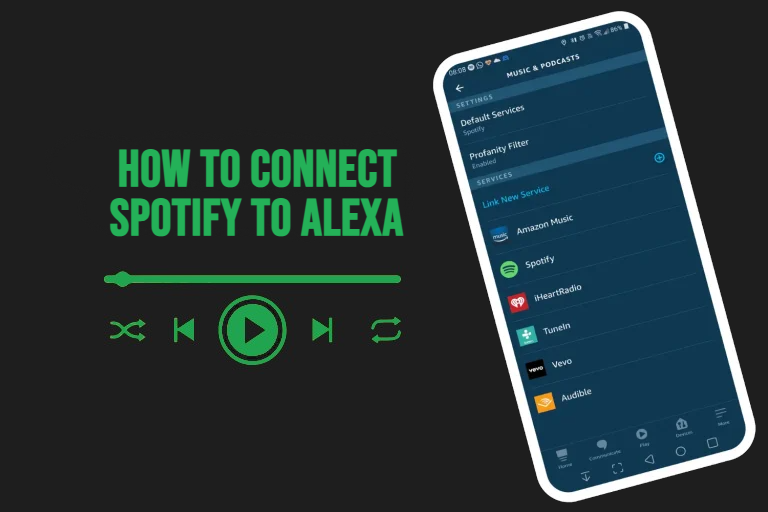
- Tap Link New Service and find Spotify in the list.
- The app redirects you to Spotify login page. Enter your email and password or use Facebook or Google login.
- Tap Agree or Authorize when Spotify asks for permission to connect with Alexa.
- Go back to the Alexa app. You should see Spotify listed under linked services.
- Set Spotify as your default music service. Tap Default Services and choose Spotify for both music library and station options.
- Test the connection by saying Alexa play some music. Your Echo should start playing from Spotify.
Best Voice Commands for Spotify on Alexa
Learning the right voice commands makes your experience much better. Here are the most useful ones:
Basic Controls:
- Alexa play
- Alexa pause
- Alexa resume
- Alexa stop
- Alexa skip
- Alexa next
- Alexa previous
Play Specific Content:
- Alexa play Blinding Lights
- Alexa play The Weeknd
- Alexa play my workout playlist
- Alexa play rock music
- Alexa play discover weekly
Volume Control:
- Alexa volume up
- Alexa volume down
- Alexa volume 5
- Alexa set volume to 50 percent
Music Discovery:
- Alexa what song is this
- Alexa who sings this song
- Alexa play similar music
- Alexa shuffle on
- Alexa repeat
Key Benefits of Connecting Spotify to Alexa
Connecting Spotify to Alexa brings several advantages. By learning how to connect Spotify to Alexa, you can enjoy hands-free control, multi-room audio, and smart home integration.
Hands Free Control: Manage music without stopping your activities. Perfect when cooking, cleaning, or exercising.
Multi Room Audio: Play the same song on all Echo devices at once. Great for parties or consistent sound throughout your house.
Smart Home Integration: Connect music to other devices. Lights dim automatically when you start a playlist or music plays when your alarm goes off.
Faster Access: Voice commands work faster than unlocking your phone and opening apps.
Battery Saving: Your phone stays charged longer since Alexa handles music playback.
Family Friendly: Everyone can access their own music with voice profiles that recognize different family members.
Spotify Free vs Premium on Alexa
| Feature | Spotify Free | Spotify Premium |
|---|---|---|
| Voice Commands | Limited song selection | Full control over any song |
| Skip Songs | Limited skips per hour | Unlimited skips |
| Playback Quality | Standard quality | High quality options |
| Offline Listening | Not available | Download and play offline |
| Ad Interruptions | Ads between songs | No advertisements |
| On Demand Play | Shuffle only | Play exact songs |
How to Disconnect Spotify from Alexa
If you want to unlink your Spotify account from Alexa, follow these simple steps:
- Open the Alexa app on your smartphone
- Tap the menu icon at the bottom right corner
- Go to Settings and select Music and Podcasts
- Find Spotify in your linked services list
- Tap on Spotify and select Disable Skill or Unlink Account
- Confirm the disconnection when prompted
Your Spotify account will stop working with Alexa immediately. You will receive a confirmation email about the disconnection. Your Spotify account stays active and you can relink it anytime.
Common Problems and Solutions while Connecting Spotify with Alexa
Here are the five most common issues and how to fix them:
Alexa Says Spotify Not Responding
Your Spotify account got disconnected. Open the Alexa app, go to settings, find music services, and relink your Spotify account. Enter your login details correctly.
Alexa Plays Amazon Music Instead of Spotify
Amazon Music is set as default. Open Alexa app, go to Settings, tap Music and Podcasts, select Default Services, and change both options to Spotify.
Music Stops Playing Randomly
Weak internet connection causes this. Move your Echo device closer to your wifi router or restart your router. Upgrade your internet plan if you have many devices connected.
Cannot Link Spotify Account
Use correct login credentials. If you signed up with Facebook or Google, create a password for your Spotify account first. Update your Alexa app to the latest version.
Alexa Does Not Understand Commands
Speak clearly and use simple phrases. Say exact song names instead of vague descriptions. Retrain Alexa to recognize your voice better in app settings.
Alternative Voice Assistants for Spotify
You may like some other alternatives of Spotify which are compatible with Alexa. If Alexa does not fit your needs, try these options:
Google Assistant (Gemini)
Works on Google Home speakers and Android phones. Similar setup process with good natural language understanding.
Siri
Integrates with iPhone, iPad, and HomePod. It has limited Spotify features compared to Apple Music. Must say on Spotify after each command.
Samsung Bixby
Supports Samsung phones and Galaxy Home. Works best with Samsung ecosystem but less reliable voice recognition.
Spotify Voice Control
Use the microphone icon in Spotify app. Requires phone nearby but gives full control without smart speaker.
Pros and Cons of Spotify Alexa Connection
| Pros | Cons |
|---|---|
| 👍Hands free music control | 👎Voice recognition fails in noise |
| 👍Works with free and premium | 👎Free version has limitations |
| 👍Multi room audio support | 👎Needs stable internet |
| 👍Easy setup in minutes | 👎Privacy concerns |
| 👍Saves phone battery | 👎Alexa devices cost money |
| 👍Accessible for disabilities | 👎Commands need exact phrasing |
| 👍Family profiles available | 👎May disconnect randomly |
| 👍Smart home integration | 👎Learning curve for beginners |
Conclusion
Connecting Spotify to Alexa transforms your music experience with hands free control and smart features. The setup takes just minutes but unlocks voice commands, multi room audio, and home automation. Both free and premium Spotify accounts work perfectly with Alexa devices. Start linking your accounts today and explore the convenience of voice controlled music for a seamless listening experience.
Now you know exactly how to connect Spotify to Alexa and enjoy music with just your voice.
Frequently Asked Questions
Can I use Spotify free with Alexa or do I need premium?
You can use both Spotify free and premium with Alexa. The free version works but includes ads and limits how you select songs. With Spotify free, Alexa plays stations or shuffled playlists based on your request. Premium subscribers get full control to play any specific song on demand without ads.
Why does Alexa keep playing Amazon Music instead of Spotify?
This happens when Amazon Music is set as your default music service. Open the Alexa app, go to settings, select music and podcasts, then choose Spotify as your default service. You can also disable Amazon Music completely to avoid confusion.
How do I unlink Spotify from Alexa?
Open the Alexa app and tap the menu icon. Go to settings, then music and podcasts. Find Spotify in your linked services and tap it. Select disable skill or unlink account. Alexa stops accessing your Spotify account immediately.
Does connecting Spotify to Alexa work in all countries?
Spotify and Alexa integration works in most countries where both services are available. This includes United States, United Kingdom, Canada, Australia, Germany, France, Italy, Spain, and many others. Check if both services operate in your country first.
Can multiple people use their Spotify accounts on one Alexa device?
Yes, through voice profiles. Each person sets up their voice profile in the Alexa app and links their individual Spotify account. Alexa recognizes different voices and switches to the correct account automatically on newer Echo devices.
How do I connect Spotify to Alexa step by step?
To connect Spotify to Alexa, first install the Alexa app on your phone from the App Store or Google Play. Open the app and sign in with your Amazon account. Tap the menu icon, go to Settings, then select Music and Podcasts. Choose Link New Service and tap Spotify from the list. Log in to your Spotify account and allow permission when asked. After linking, return to the Alexa app and set Spotify as your default music service. Finally, test it by saying, “Alexa, play music on Spotify.